

Numbers build trust. When a new visitor lands on your OnlyFans bio link page and sees that you have 14,000 followers, 98% positive ratings and have been creating for three years — they are looking at social proof in its most direct form. There is no copy to write, no claim to make. The numbers speak for themselves.
The Stats Showcase block on Bio-Link.se lets you display up to eight stat cards on your bio link page — each with an emoji, a value and a label. You choose what to show. Subscriber count, total likes, years active, response rate, custom content delivered, five-star reviews — anything that communicates your credibility and reach gets a dedicated card with an animated counter that runs when a visitor scrolls into view.
This guide covers how to set up the Stats Showcase block, what stats to display, and how to use social proof strategically to convert more visitors into paying subscribers.
Why Social Proof Works on OnlyFans Bio Link Pages
A visitor who arrives on your bio link page from Instagram or TikTok does not know you yet. They followed you because something caught their attention — a reel, a comment, a recommendation — but they have not subscribed. They are evaluating whether the price is worth it.
Social proof shortcuts that evaluation. When someone sees a large follower count or a high rating, their brain interprets it as evidence that other people have already made the same decision and found it worthwhile. The psychological term is social validation — and it is one of the most reliable conversion mechanisms in existence.
For OnlyFans creators specifically, social proof carries extra weight because the product is intangible before purchase. A fan cannot sample your content before subscribing. Stats replace that missing preview with credible, concrete signals: this creator has X subscribers, Y likes, Z five-star reviews. That evidence reduces hesitation and moves undecided visitors toward the subscribe button.
What the Stats Showcase Block Does
The Stats Showcase block renders a responsive grid of stat cards on your bio link page. Each card displays three elements:
Emoji    — Visual anchor, makes each stat immediately scannable
Value    — The number or text: "14K+", "4.9★", "98%", "$500K"
Label    — The descriptor: "Followers", "Rating", "Response Rate"
The grid layout adapts to the number of columns you select — one, two, three or four columns on desktop, collapsing cleanly to two columns on mobile. Up to eight stats can be displayed in a single block.
The standout feature is the animated number counter. When the Animate Numbers option is enabled, each stat value counts up from zero when the block scrolls into the visitor’s viewport. The animation uses an easeOut curve — fast at the start, slowing to the exact final value — which draws the eye and makes the numbers feel dynamic and real rather than static. The counter handles prefixes, suffixes and decimal values automatically: $500, 10K+, 4.9★ and 98% all animate correctly without any extra configuration.
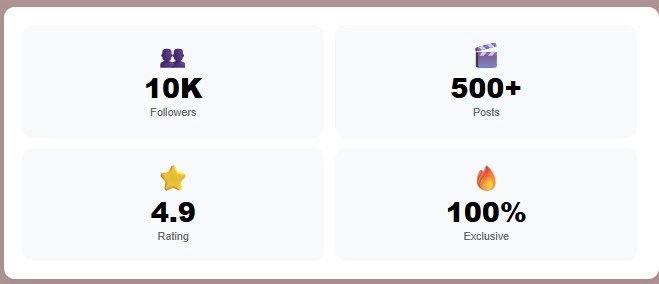
Mockup
Here is what the Stats Showcase block looks like on a bio link page with four stats in a two-column layout:
Setting Up Your Stats Showcase Block
Adding the block to your bio link page takes under two minutes. In your Bio-Link.se dashboard, add a Stats Showcase block and configure the following:
Title — Optional. A short heading above the grid: ”My Stats”, ”By the Numbers” or left blank for a cleaner look.
Animate Numbers — Toggle this on. The counting animation is one of the most engaging visual elements on a bio link page and costs nothing to enable.
Columns — Two columns is the default and works well for most stat sets. Four columns works if you have four stats that each fit in a compact card. Three columns works on desktop but can feel uneven if your stat count is not a multiple of three.
Stats — For each stat you enter an emoji, a value and a label. The value field accepts any text — numbers, suffixes, prefixes, symbols. The animated counter extracts the numeric portion automatically, so 14K+, $500, 4.9★ and 98% all animate correctly.
Which Stats to Display on Your OnlyFans Bio Link
The stats you choose should answer the questions a new visitor is already asking. What kind of creator are you? How many people follow you? Are you active? Are you responsive? The right stat set answers all of those questions at a glance.
High-impact stats for OnlyFans creators:
👥  Followers          — Your total OnlyFans subscriber count
❤️  Total Likes        — Cumulative likes across your content
⭐  Rating             — Your OnlyFans star rating: "4.9★"
💬  Response Rate      — "98%" or "< 2h" average reply time
📸  Posts Published    — Total content volume: "500+ Posts"
🔥  Years Creating     — Establishes longevity and trust
💌  Custom Content     — "200+ custom orders fulfilled"
🌍  Countries          — If you have a global fanbase
For newer creators without large numbers yet:
You do not need large numbers to use the Stats Showcase block effectively. A newer creator can display stats that communicate quality and commitment rather than volume:
📅  Posting Schedule   — "Daily posts"
💬  DM Response        — "Replies within 1 hour"
📸  Posts This Month   — "32 posts this month"
✅  Custom Orders      — "Open for requests"
These stats are honest, specific and still convert — they tell a fan that you are active, responsive and professional, which is exactly what an undecided subscriber needs to see.
The Animated Number Counter — How It Works
When Animate Numbers is enabled, each stat value animates from zero to its final value using an easeOut curve. The animation triggers via IntersectionObserver — it only runs when the block enters the viewport, which means visitors who scroll quickly past do not see a partially completed animation.
The counter is smart about value formats:
"14K+"   → animates the 14, preserves K+ as suffix
"$500"   → preserves $ as prefix, animates 500
"4.9★"   → animates 4.9 with one decimal place
"98%"    → animates 98, preserves % as suffix
"3 Yrs"  → animates 3, preserves " Yrs" as suffix
If the value does not contain a recognizable number — for example, ”Daily posts” or ”Open for requests” — the block displays it as static text without attempting to animate it.
Each stat card also has a subtle entrance animation — cards fade in and slide up sequentially with an 80ms stagger between each one. This gives the grid a sense of life when it enters the viewport without being distracting.
Both animations respect the prefers-reduced-motion browser setting — visitors who have enabled reduced motion in their operating system see static cards and static values instead.
Style Options for the Stats Showcase Block
The block has a full style panel with controls for every visual element.
Value Size — Normal (1.4rem), Large (1.875rem, default) or X-Large (2.25rem). Large works well for most stat sets. X-Large is best when you have two or fewer stats and want each number to make a strong visual impact.
Label Size — Small (0.75rem, default), Normal or Large. The label should be noticeably smaller than the value — this creates visual hierarchy and makes the number the focal point.
Colors — Separate color pickers for background, card background, title, value text and label text. This lets you match the block to your bio link theme exactly — dark background with white values, light cards with dark text, or any combination your brand uses.
Block Shape and Card Shape — Independent shape controls for the outer wrapper and each individual card. Straight (0px radius), Rounded (12px, default) or Pill (24px). Setting both to Rounded gives a clean, modern look. Setting cards to Pill with a Straight block wrapper creates an interesting contrast.
Border — Width (0–5px), color and style (Solid, Dashed, Double, Outset, Inset). A subtle 1px solid border in a slightly darker shade than the card background adds definition without visual weight.
Shadow — None, Subtle (default), Strong or Hard. Subtle is the right choice for most bio link themes. Hard shadow gives an editorial, graphic feel that works well on dark or high-contrast themes.
Where to Place the Stats Showcase Block
Position the Stats Showcase block early on your bio link page — ideally in the first or second scroll position after your profile header. The goal is to establish credibility before a visitor encounters your subscription pricing.
Recommended page order:
1. OF Hero             — Name, avatar, tagline
2. Stats Showcase      — Social proof, credibility
3. Content Teaser      — Blurred preview, desire
4. Subscription Tier   — Pricing, conversion point
5. Price Menu          — Custom content options
6. Tip Goal Tracker    — Community engagement
7. Social links        — Everything else
Placing Stats Showcase before the pricing block means visitors arrive at the subscription decision already primed with evidence of your reach and quality. They are not seeing a price cold — they are seeing it after 14,000 followers, a 4.9-star rating and a 98% response rate have already done the convincing.
👉 Add the Stats Showcase block to your bio link →
Frequently Asked Questions
What stats should I put on my OnlyFans bio link?
Start with your follower count, rating and response rate. These three stats answer the questions most new visitors have before subscribing. Add posting frequency or years active if you want to communicate consistency. If your numbers are still growing, use qualitative stats like response time and posting schedule instead.
Does the animated number counter work on mobile?
Yes. The animation uses IntersectionObserver and requestAnimationFrame, both of which are fully supported on all modern mobile browsers. The animation respects the device’s reduced motion setting — visitors who have enabled this in their phone’s accessibility settings see static values instead.
Can I use the Stats Showcase block without showing follower counts?
Absolutely. The block accepts any value and any label. You can display posting frequency, response time, years active, custom orders fulfilled or any other metric that reflects your credibility — none of them require a large audience to be effective.
How many stats should I show?
Four to six stats in a two-column layout is the most effective configuration for most creators. Fewer than four feels sparse. More than six can make the block feel cluttered and reduce the impact of each individual stat.
Can I use the Stats Showcase block on a Fansly bio link?
Yes. The block works on any bio link page on Bio-Link.se, whether you are promoting OnlyFans, Fansly or both. The stats, layout and styling are identical regardless of which platform you are linking to.